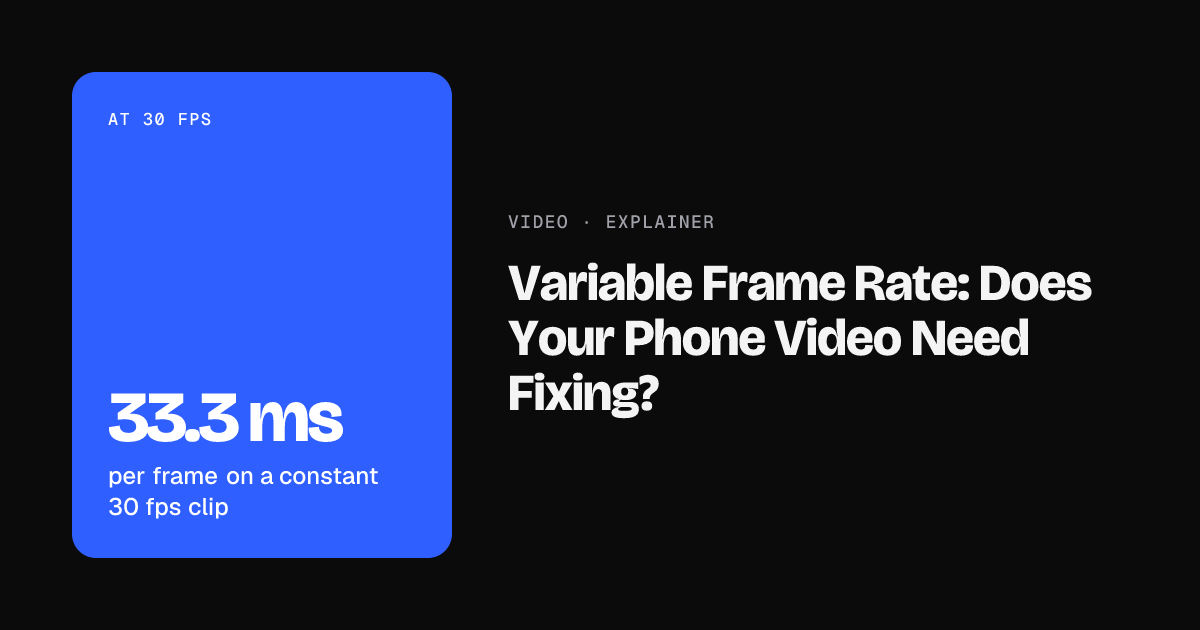
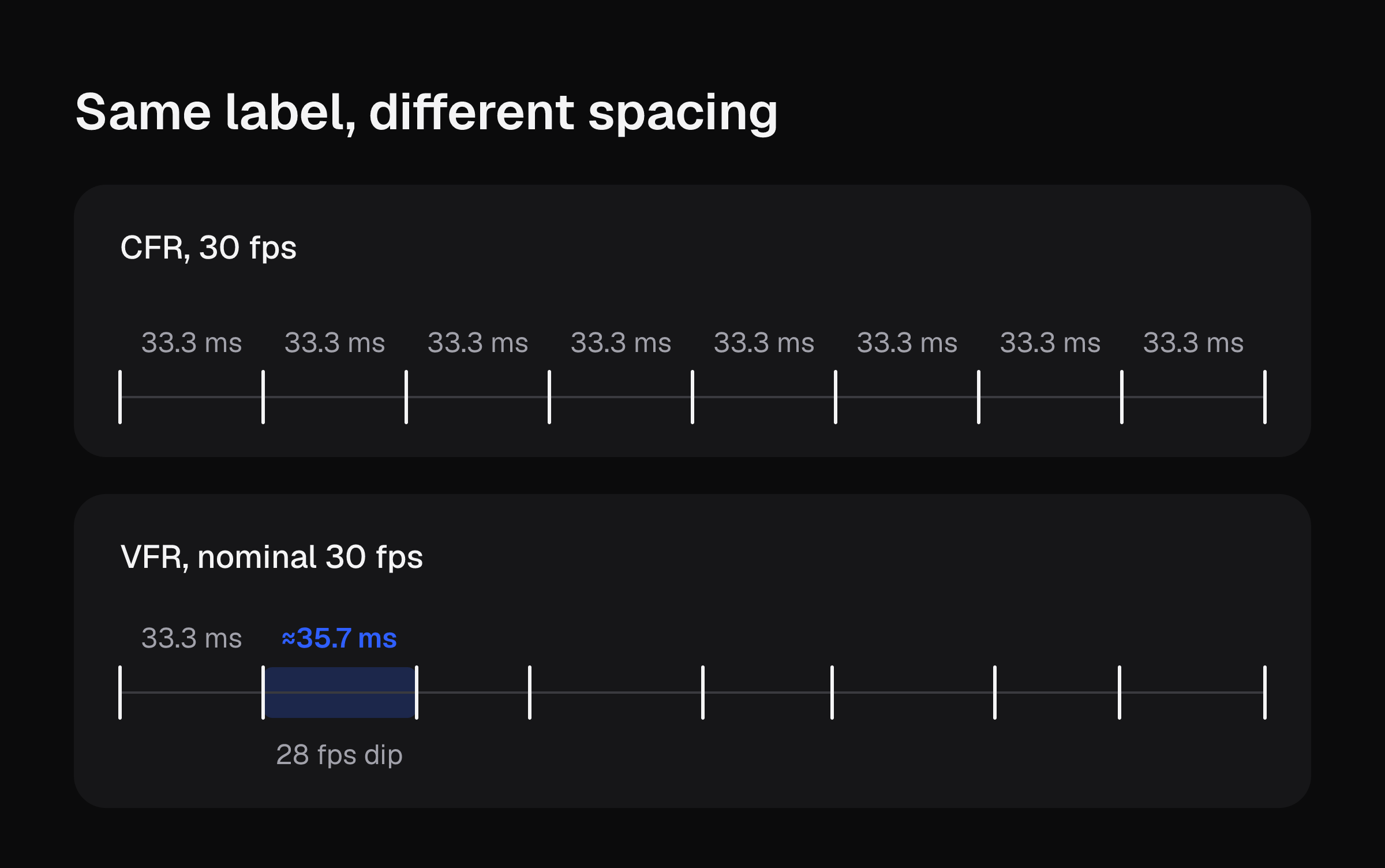
Variable frame rate (VFR) means the gap between frames changes while the phone records, so a clip labelled 30 fps may not have evenly spaced frames. Constant frame rate (CFR) gives every frame the same duration, which at 30 fps is one frame every 33.3 ms.
For a creator who films and posts, VFR is fine. It plays correctly, and most video platforms read the timestamps correctly when you upload. It only causes trouble in editing software that expects every frame to last the same time.
If trimming takes is the bigger drain on your day, upload one raw take and get the first clip cut free, no card needed. The rest of this page is the check for VFR, with numbers.
Why phones record variable frame rate
Phones stamp each frame with the time it was actually captured. They do not invent frames to keep a perfect rhythm. VFR also saves storage and processing, because the phone can drop frames that are not needed in low-motion scenes. Smartphones are the most common source of VFR, and iPhone video uses it by default (sources: MediaConverter, ScienceInsights, EditLogic, all checked 2026-10-26).
What it looks like in numbers:
- A clip nominally at 30 fps can vary between 28 and 30.
- The file may report an average such as 29.910988 or 29.970030 instead of a clean 30.
- Frames can arrive anywhere from a few milliseconds to a tenth of a second apart.
How to check for variable frame rate on your clip
Use the free MediaInfo app. You can do it on your phone or after you move the file to a computer.
- Open the video file in MediaInfo.
- Find the Video section.
- Read the line called Frame rate mode.
- If it says Variable, the file is VFR. If it says Constant, it is CFR.
- Note the reported frame rate on the line below it.
If you cannot check, assume phone recordings, screen captures and game clips are VFR. ffprobe can detect it too, but MediaInfo is the easier route (MediaConverter, Mydubly).
What goes wrong in editors
The usual symptom is audio drift. Video and audio slowly separate, and it often shows up only several minutes into a long recording. One source gives the example of a 10-minute screen recording ending a full second or more ahead of or behind the audio. It gets worse the longer the video runs.
Short takes are less exposed. As rough arithmetic only (my scaling, not a figure from the sources): if drift were steady at one second per 10 minutes, a 3-minute take would be off by about 0.3 seconds at the end. Real drift is not guaranteed to be steady.
TikTok's frame rate range
The numbers that matter more for most creators are TikTok's limits. These come from the Content Posting API media transfer guide (checked 2026-10-26), so they describe that upload route. Your in-app upload may differ.
| Spec | Limit |
|---|---|
| Frame rate | 23 to 60 fps |
| Container | MP4 (recommended), WebM or MOV |
| Codec | H.264 recommended |
| Side length | 360 to 4096 px |
| File size | 4 GB maximum |
A 23.976 or 24 fps clip clears the floor. A 12 or 15 fps timelapse or slideshow export falls outside the range. On length, XConvert's guide (checked 2026-10-26) says all creators can post 3-minute videos and some can post 5 or 10 minutes. See how long a TikTok video can be for the full limits, and TikTok aspect ratio for the size side.
The same range as a number line (x marks a frame rate, not to scale):
fps    12 15      23 24  29.97                    60
       |  |       |  |   |                        |
-------x--x-------[==x===x========================]-------
       outside    inside: TikTok's 23 to 60 fps range
12 and 15 fps sit left of the 23 fps floor. 24 and 29.97 fps sit inside the range, and 60 fps is the top of it.
Worked example
Take one talking-head clip, filmed on a phone, and run the decision.
Assumptions (mine, replace with yours): you film 6 takes a day and spend 4 minutes trimming each by hand. That is 24 minutes a day before any format check.
Numbers from the sources: at 30 fps each frame lasts 33.3 ms. A nominal 30 fps file that dips to 28 fps has frames about 35.7 ms apart, 2.4 ms longer. That gap is tiny per frame. Drift comes from it adding up over minutes. TikTok's range is 23 to 60 fps, and the default length is 3 minutes.
| Step | What you read | Decision |
|---|---|---|
| 1. Frame rate mode in MediaInfo | Variable | The file is VFR |
| 2. Reported fps | 29.97 average | Inside 23 to 60, so it clears TikTok's range |
| 3. Length | 2 minutes 10 seconds | Under the 3-minute default |
| 4. Upload as is? | Yes | VFR plays and uploads fine |
| 5. Convert to CFR? | Only if your editor drifts | Otherwise skip it |
The check itself is 3 steps and takes about a minute. A conversion adds more. If you assumed 3 extra minutes for converting each of those 6 takes, that is 18 more minutes a day on top of the 24. Convert only the takes that drift, and the extra is often zero.
If your 24 minutes a day is the cost you want to cut, upload a raw take and the first clip is cut free, no card required.
Fix options if an editor drifts
Converting to CFR means re-encoding the video at a fixed rate. That is lossy like any lossy conversion, though at a bitrate close to the source the loss is hard to see.
- Open the file in HandBrake.
- Under frame rate settings, choose Constant Frame Rate.
- Pick Same as Source for the rate. A specific target such as 30 or 60 duplicates or drops frames, which can add slight artifacts when the original varied a lot.
- Export, then check sync near the end of the clip, because that is where drift shows.
Keep the shot frame rate where you can. For the web, 30 fps is a safe default, and 60 is worth keeping for sport and fast camera moves (MediaConverter, ScienceInsights, EditLogic).
An EditLogic guide on CapCut audio sync (checked 2026-10-26) gives the same route: convert with HandBrake to CFR at 30 or 60 using H.264 or H.265, then re-import. If the problem is preview lag only, it suggests a proxy at 720p or lower, and says proxies do not change export quality. For more on app choices, see CapCut alternatives for talking-head videos.
Preventing it on the phone
Most built-in camera apps have no CFR setting. Some third-party camera apps can force CFR, but at the cost of more storage and battery. Good light helps a phone keep a steadier rate. For regular phone footage, transcoding after recording is usually the more reliable route (ScienceInsights, MediaConverter).
If you only film and post, the cheapest rule is this: check one clip, and touch the format again only when an editor drifts. For the phone-side trimming steps, see how to edit TikTok videos.
When a take is ready to cut, upload it raw and get the first clip free, no card needed.